Count the same thing on both sides, over the same window. Check the ICS source for events in the next 30 days, then look at the public events page logged out for the same dates, and look for three specific events, not just totals. If both are empty the calendar is quiet or the source is the problem. If the source has events and the page doesn’t, it’s a display problem. Some results can’t be compared honestly, and it’s better to say so.
“The calendar is empty” can mean two different things: nothing was published, or something was published and the website isn’t showing it. They have different owners and different fixes. Comparing the calendar’s ICS source with its public page, carefully, tells you which one you have before anyone starts changing settings.
This is a manual comparison. The free checker reads the file; it does not load your website.
Fix the window and the scope
Decide exactly what you are comparing before you look at either side:
- Window: from now until 30 days from now. That is what the ICS event checker counts, so use the same dates on the website.
- Scope: the same calendar on both sides. If the page is filtered to a category or venue, the source must be an export of that same view, not the whole site.
- Time: note when you checked. A feed downloaded this morning and a page viewed this afternoon can legitimately differ.
Count the source
Download a fresh copy of the feed the site uses (see get the file the site actually uses) and run it through the checker. Note three things from the report: the result type, the count, and the next known event. Open Show the upcoming events and pick three events spread across the month.
Readable · upcoming events found
This file has 3 upcoming events in the next 30 days.

Thu 5 Mar, 10:00    First upcoming
Thu 12 Mar, 10:00   Second upcoming
Mon 30 Mar, 19:00 Third upcomingLook at the page as a visitor
Open the public events page in a private window, logged out, so you see what visitors see rather than an administrator’s uncached view. Use the list view if there is one, and page forward until you are past the end of the window. List views show a limited number of events per page; The Events Calendar’s “Number of events to show per page” setting controls this for its List view.
Look for each of your three events by name and date. Then note roughly how many events the page shows in the window.
Place the result
Use the four cases below. Name the case in your notes or client message; it is more useful than “the calendar is broken”.
A worked example
We ran this comparison on a test site, “Example Community Hall”, running WordPress 7.1.4 and The Events Calendar 6.18.3.1, with four invented events. The events and the venue are made up; the pages and the export are exactly as the plugin produced them on 7 November 2026.
The source. The List view’s export (/events/list/?ical=1) downloaded as a 2,345-byte text/calendar file. The checker reported:
Readable · upcoming events found
This file has 4 upcoming events in the next 30 days.

Tue 10 Nov, 19:30   Quiz night
Tue 17 Nov, 19:00   Community choir: winter concert
Sat 21 Nov, 10:00   Repair café
Thu 26 Nov, 10:00 Pottery workshopThe page. The List view, logged out, showed the same four events on the same dates and times:
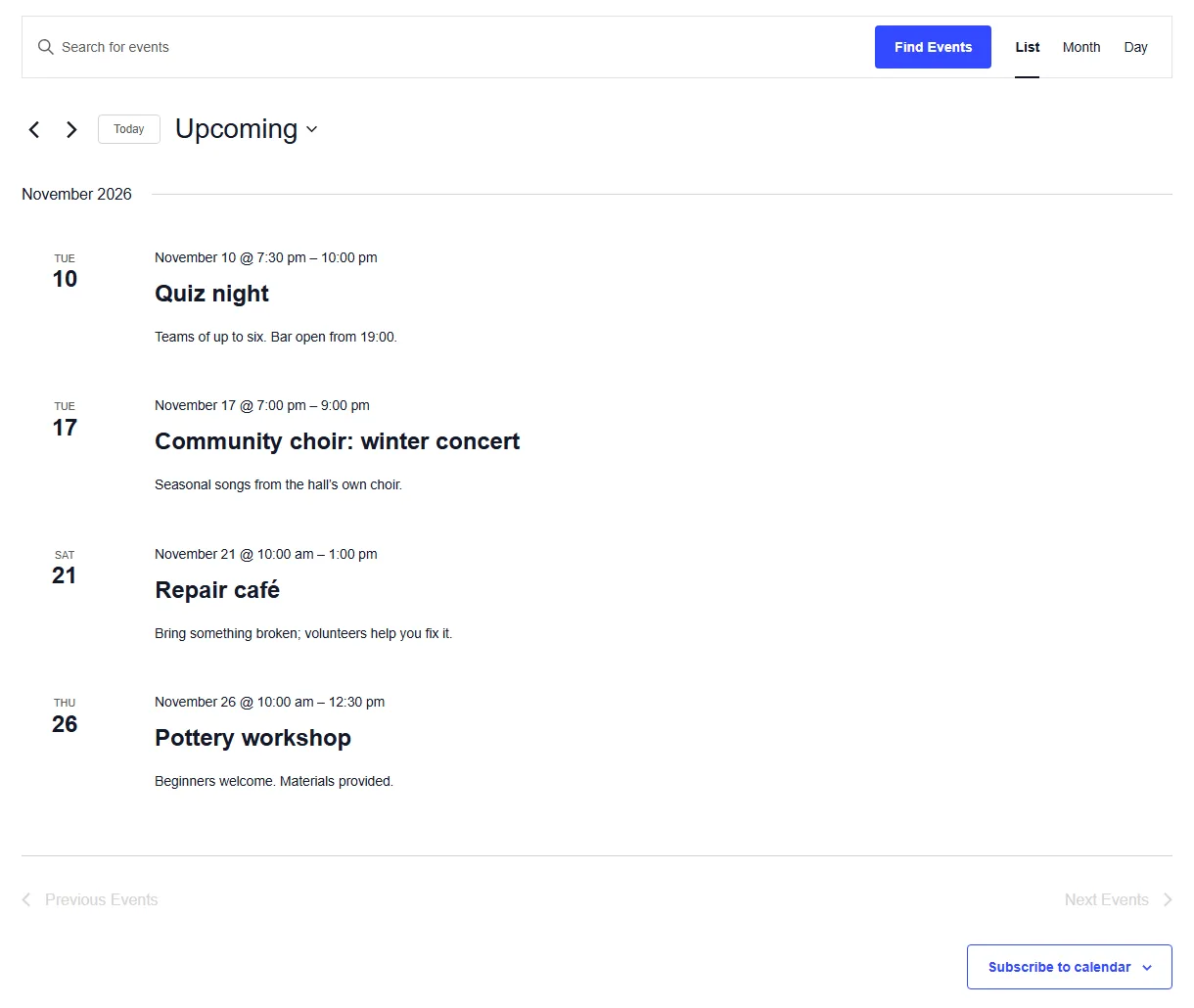
That is the first case, both populated. Notice that the page shows times as “7:30 pm” while the checker shows “19:30”; compare the moment, not the format.
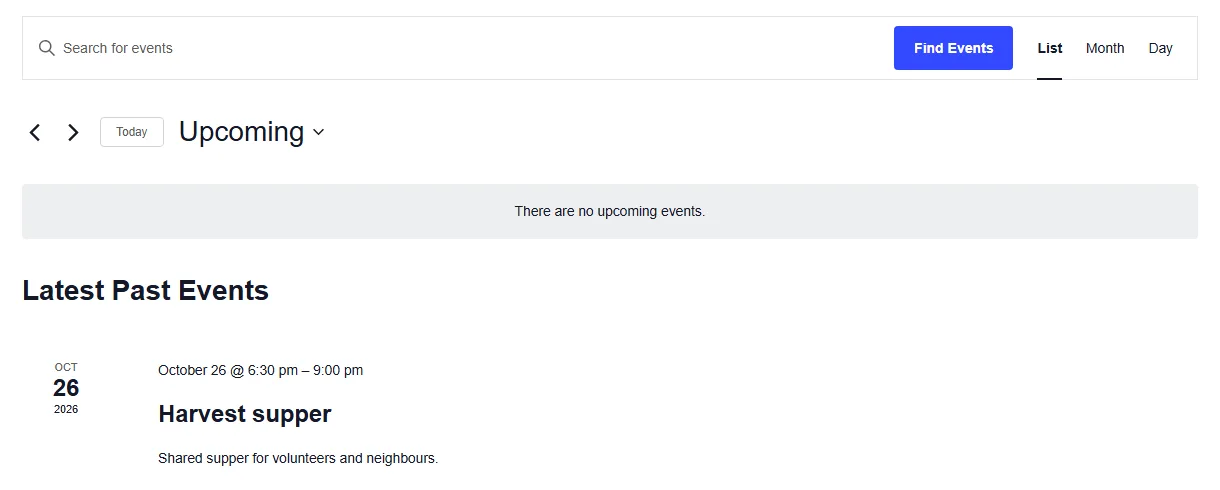
The quiet version. We then unpublished the four events, leaving one past event. The List view said “There are no upcoming events.” and showed it under Latest Past Events. The export returned an empty, 0-byte response rather than a calendar file, which the checker reports as Empty file.
The four cases
| Source (ICS) | Public page | What it means | Next step |
|---|---|---|---|
| Upcoming events | Shows the same events | Both populated. Nothing is missing for this window. | Nothing to fix. If someone reported a missing event, check that specific event’s status and dates. |
| No upcoming events | No events | Both quiet. The website is correctly showing an empty source. | Ask whoever publishes events whether anything should be scheduled. See ICS file has no upcoming events. |
| Upcoming events | No events, or some missing | Source populated, page empty. The display, cache or sync is the problem. | Work through WordPress events not showing. |
| Can’t be read, or count incomplete | Anything | Unable to verify. There is no reliable number to compare. | Fix the source first, or check the uncounted events by hand (below). |
There is a fifth combination worth noticing: the page shows events the source doesn’t have. That usually means the feed you downloaded is not the one the page uses (a different calendar, category or export), or the page is serving an old cached copy. Recheck which source the site really uses before going further.
Differences that aren’t failures
Counts can differ for good reasons. Rule these out before calling it a discrepancy:
- Recurring events. A website lists each occurrence; the checker doesn’t expand recurring rules, marks the result Incomplete count, and counts only one-off events. Compare those, and check recurring dates in a test calendar app. How to count upcoming events in an ICS file explains why.
- Events in progress. The checker counts an event that started before now but hasn’t finished. The Events Calendar’s documentation says its views also show ongoing events after their start time, but a site can be customised to hide them.
- Hidden events. In The Events Calendar, Hide From Event Listings keeps an event out of listings. Whether a hidden event still appears in an export depends on the export, so check both.
- Cancelled events. The checker doesn’t count events marked
STATUS:CANCELLED. A website may still list them with a “cancelled” label. - Window edges and time zones. An event near the start or end of the 30 days can fall either side depending on the zone each side uses. See ICS event on the wrong day or time.
- Publishing delay. A page cache, or an import that runs on a schedule, can lag the source by hours. Recheck after the next cache expiry or import run before reporting a fault. (Not every cache lags: on our test site, WP Super Cache with its default settings refreshed the cached List view as soon as an event was published.)
When you can’t verify
Say “unable to verify” rather than guessing when:
- the source is not a readable calendar file (see ICS download is a web page, not a calendar);
- the checker’s count is incomplete and the events that matter are recurring;
- the page needs a login, or only shows events after scripts run that you can’t inspect;
- the page and the source cover different scopes and you can’t get matching exports.
An honest “unable to verify, because…” is a useful result. It tells the client what has to change before anyone can say whether the calendar is working.
Limitations of this guide
- The comparison is manual and point-in-time. It shows the state when you looked, not whether the page will stay correct.
- Setting names for The Events Calendar come from its documentation at the verification date above. Other plugins name things differently.
- It assumes the website gets its events from the same calendar as the feed. If the site and the feed are maintained separately, a difference may be a content issue, not a technical one.
Sources
- Customizing The Events Calendar Views · The Events Calendar documentation (Nexcess) , accessed 7 Nov 2026
- Troubleshooting Subscribe and Export on The Events Calendar · The Events Calendar documentation (Nexcess) , accessed 7 Nov 2026
- Fixing Missing Events on the Calendar · The Events Calendar documentation (Nexcess) , accessed 7 Nov 2026
Maintaining calendars for several clients? We’re recruiting five agencies to pilot automated checks Pilot